> ## Documentation Index
> Fetch the complete documentation index at: https://ui-docs.vibeflow.ai/llms.txt
> Use this file to discover all available pages before exploring further.
# Community Templates
> Browse hundreds of community-built UIs and use them as starting points
The VibeFlow community shares ready-made UI projects that you can browse, preview, and remix into your own work.
## Browsing Templates
Navigate to **Community** in the sidebar or visit the community page from the
landing page.
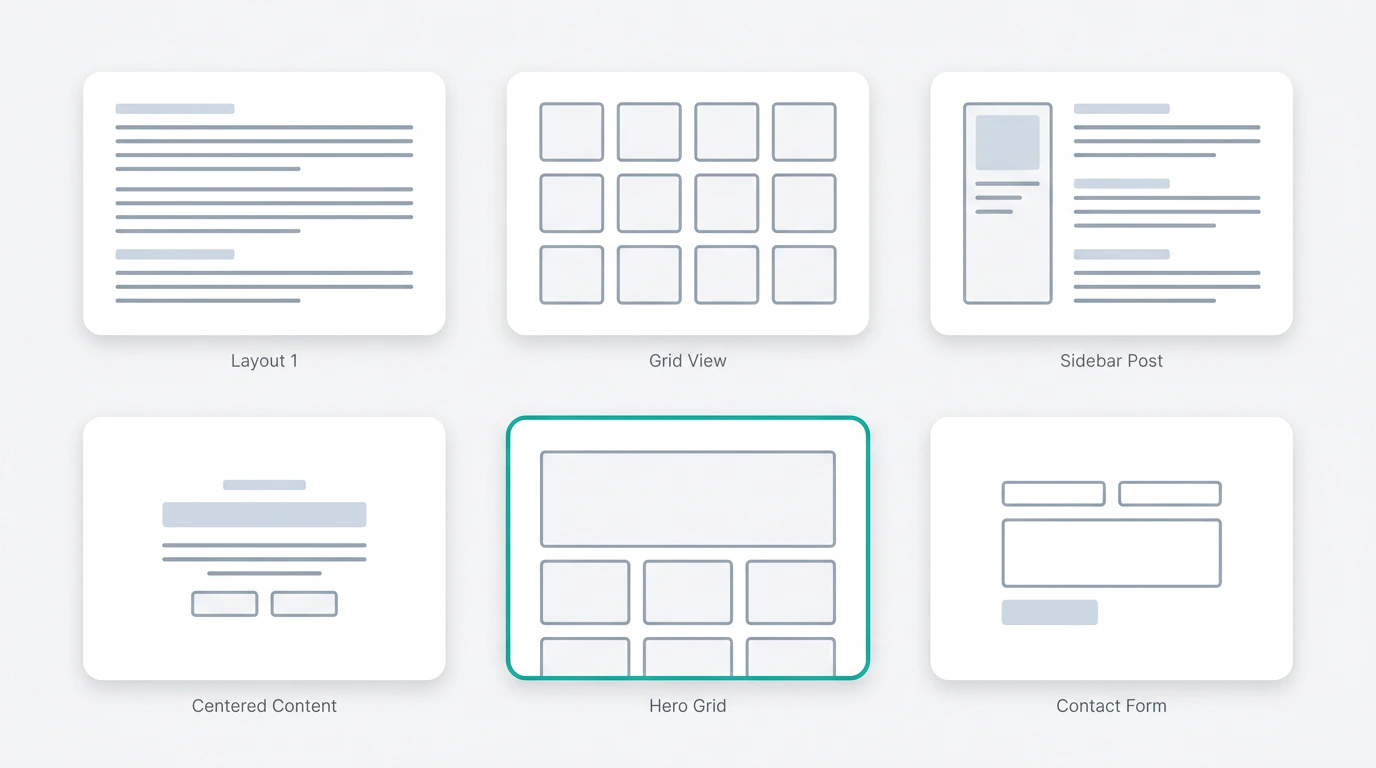
Scroll through the template gallery. Each template shows a preview image,
title, and the original creator.
Click a template to open a live preview. Inspect the full UI before deciding
to use it.
 ## What's in a Template?
Each community template is a complete React project, including:
* Full component structure
* Styling (Tailwind CSS)
* Responsive layout
* Interactive elements
Templates cover a wide range of use cases: landing pages, dashboards, e-commerce storefronts, portfolios, admin panels, and more.
## Using a Template
When you find a template you like, click **Remix** to create your own copy. This creates a new project in your account that you can fully customize in the editor.
See [Remixing](/community/remixing) for details on how to customize a remixed template.
**Templates are starting points, not final products.** Remix a template and
then use the editor to change colors, content, layout, and components to match
your needs.
## What's in a Template?
Each community template is a complete React project, including:
* Full component structure
* Styling (Tailwind CSS)
* Responsive layout
* Interactive elements
Templates cover a wide range of use cases: landing pages, dashboards, e-commerce storefronts, portfolios, admin panels, and more.
## Using a Template
When you find a template you like, click **Remix** to create your own copy. This creates a new project in your account that you can fully customize in the editor.
See [Remixing](/community/remixing) for details on how to customize a remixed template.
**Templates are starting points, not final products.** Remix a template and
then use the editor to change colors, content, layout, and components to match
your needs.