

What’s in a Design System?
A VibeFlow design system includes:- Design Guidelines - Markdown-based documentation covering your brand’s principles, colors, typography, spacing, and component usage patterns
- Component Library - A curated collection of React components with JSX code
- Metadata - Tags, descriptions, and organizational information
Why Use a Design System?
- Brand consistency - Every generated UI uses your colors, fonts, and components
- Faster iteration - The AI already knows your design language, so outputs need less refinement
- Team alignment - Share a single source of truth for how UIs should look
- Quality - Leverage tested, production-ready components instead of generating from scratch
Creating a Design System
1
Navigate to Design Systems
Go to Design Systems in the sidebar navigation.
2
Create new
Click Create Design System and give it a name and description.
3
Add guidelines
Write your design guidelines in Markdown. Include:
- Color palette (primary, secondary, accent, neutral colors)
- Typography scale (font families, sizes, weights)
- Spacing system (padding, margin, gap values)
- Component patterns (how buttons, cards, inputs should look)
4
Add components
Upload React components with their JSX code. Tag them for easy discovery
(e.g., “button”, “card”, “nav”, “form”).
Using a Design System
During Project Creation
When creating a project from scratch, step 2 shows three visual path cards. Click Design System to see your uploaded design systems as cards with preview images. Search by name if you have many, then click to select one.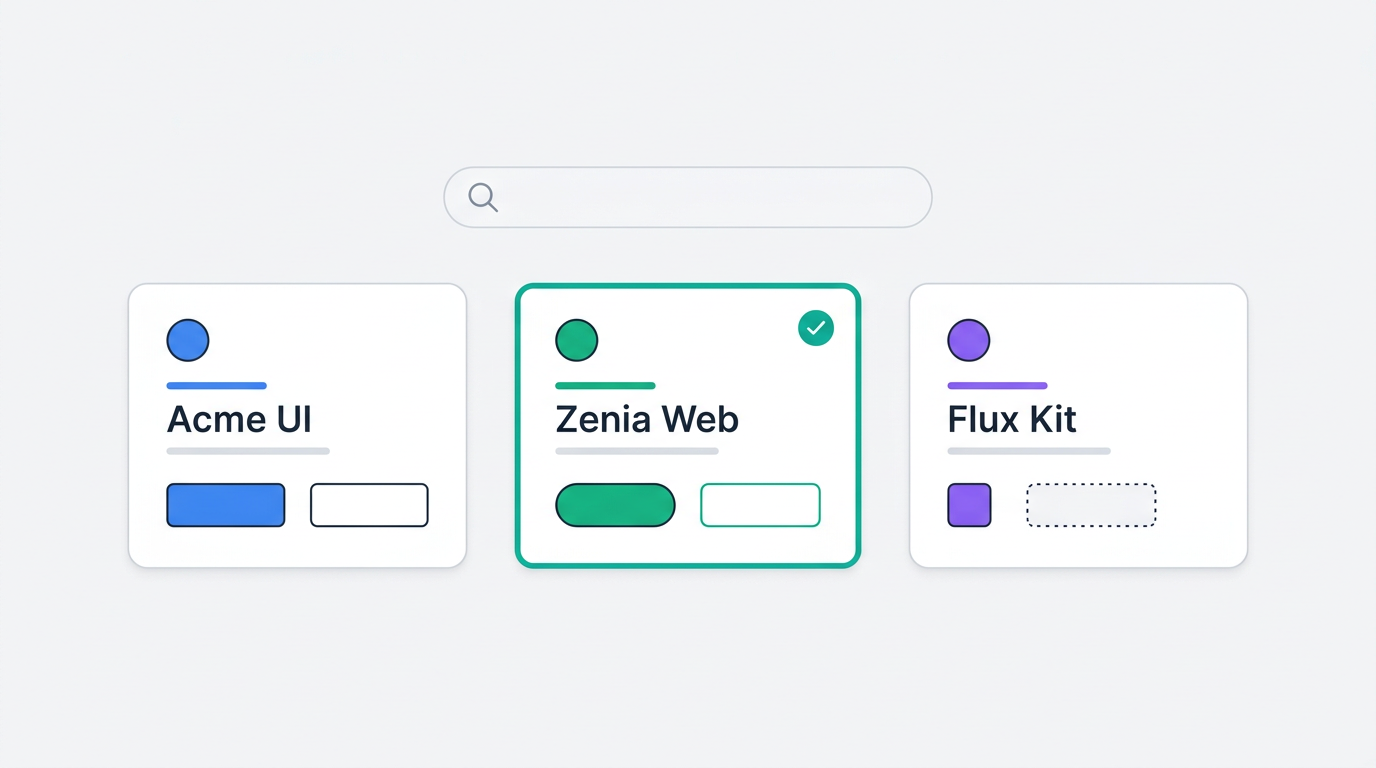
In the Editor
In the editor, click the Design System button in the chat footer. Select a design system from the dropdown. It appears as a context chip in the chat input - the AI will reference it when generating your next change.Best Practices
Start with guidelines, add components later
Start with guidelines, add components later
Even a well-written guidelines document (colors, typography, spacing rules) dramatically improves AI output. You don’t need a full component library from day one.
Be specific about colors
Be specific about colors
Instead of “use blue for primary”, write “Primary: #2563EB (Blue 600). Use for CTAs, links, and active states. Hover: #1D4ED8 (Blue 700).”
Document component variants
Document component variants
If your button has primary, secondary, and ghost variants, document each one with its use case. The AI will pick the right variant for the right context.
Include spacing tokens
Include spacing tokens
Define a spacing scale (e.g., 4px, 8px, 12px, 16px, 24px, 32px, 48px) and where each value should be used. This prevents inconsistent spacing in generated UIs.