

Layout
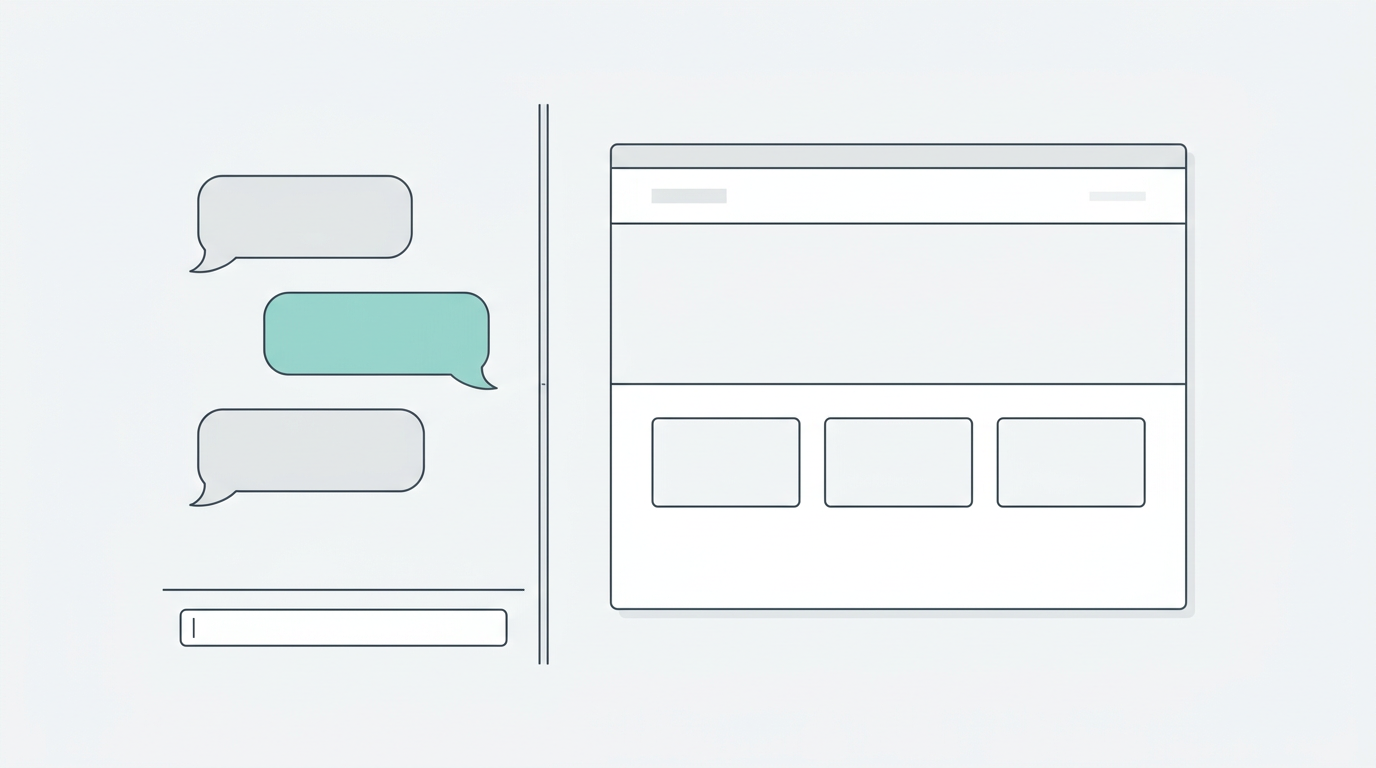
The editor has two main areas:Chat Panel (Left)
The AI chat interface where you describe changes in natural language. The AI reads your current code, understands the context, and applies modifications directly. Key features:- Natural language editing - “Make the header sticky”, “Add a dark mode toggle”
- Style and Design System context - Apply styles or design systems as context chips
- Fast mode - Optimized for quick, focused edits (default for UI projects)
Preview Panel (Right)
A live, embedded browser rendering your React application in real time. Every change the AI makes is immediately visible. Key features:- Real-time updates - See changes as they’re applied
- Full interactivity - Click buttons, fill forms, scroll - it’s a real browser
- Responsive testing - Resize the panel to test different viewport widths
Toolbar
The top bar provides quick access to:Getting Started in the Editor
1
Review the generated UI
Scroll through the preview to see what was generated. Take note of what you
want to change.
2
Describe a change
Type a natural language instruction in the chat. Be specific:
- “Change the hero background to a gradient from indigo-600 to purple-600”
- “Add a testimonials section with 3 cards after the features grid”
- “Make the navigation responsive with a hamburger menu on mobile”
3
Review and iterate
The AI applies the change and you see it instantly in the preview. Continue
describing changes until you’re satisfied.
4
Publish
Click Publish in the top-right to deploy your UI to a live URL.